Add an environment
An environment is one gateway cluster that G8 manages. Adding it connects G8 to a cluster that is already running; G8 writes nothing to the cluster when you add it.
Who may open it
Adding an environment belongs to the Platform administrator, who holds the permission to manage environments (environments.manage). Other users see the list of environments, but not Add environment.
Before you start
- The first environment already exists. The server creates it at its first start from three of its settings:
G8_ENVIRONMENTfor its slug and name,localwhen unset,G8_ENGINE_ADMIN_URLandG8_ENGINE_ADMIN_KEY. From then on it is edited in the console like any other. This page adds the next ones. - The Admin API address of the gateway cluster and its admin key. The address has to be reachable from the G8 server. The installation guides say how each cluster exposes its Admin API; see Plan the installation.
- The slug the installation guide used when it prepared Prometheus and the log store for this cluster.
- If the cluster uses certificates from a private CA, the CA certificates in PEM format.
- Optional: the address your API clients call, and the addresses of your Elasticsearch or OpenSearch and Prometheus.
Add the environment
The form groups the Admin API, the gateway address and the CA certificates under one section, Engine. The console calls the gateway the engine.
-
In the menu, select Environments, then Add environment. The environment switcher has the same entry.
-
Under General, enter a Name and a Slug. The slug is 3 to 32 lowercase letters, digits and hyphens, and starts and ends with a letter or digit. It becomes part of every address and audit row of the environment, and it cannot be changed later. It has to equal the slug the installation guide put into Prometheus and into the log store's accounts.
-
Under Engine, enter the Admin API URL and the Admin key. G8 stores the key sealed; you cannot read it back after you save.
-
Optional: enter the Gateway URL, the address your API clients call. G8 shows it on every route and checks it when you test the connection.
-
Optional: if the cluster uses a private CA, paste its certificates under CA certificates, or select Choose file. Paste only the private CA and its intermediates, up to 32 KB; the system's trusted roots are already included. G8 uses them for every HTTPS connection of this environment.
-
Select Test connection. The test changes nothing. Because the environment does not exist yet, the test is recorded in the platform audit log only. It is also optional: G8 saves the environment even if the cluster does not answer, and the list then shows it as unreachable.
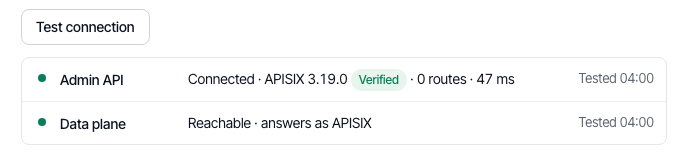
A working cluster: the Admin API answers with its version, and the gateway address answers as the gateway.
-
Optional: under Observability, enter the Elasticsearch URL with its Username and Password, and the Prometheus URL, and test each one. These tests need the slug first: the names G8 reads in those stores are built from it.
-
Optional: turn on Protected. In a protected environment, the delete dialog of every object asks you to type the object's name first. It asks for the ID instead for an object without a name, and for global rules, plugin configs, consumer groups, credentials and cost decorations, the per-service objects of graphql-limit-count. Other changes are not affected.
-
Select Create environment.
What you see next
The list of environments opens with a message. It reads: Payments is ready. Users with a role in All environments can open it now. Everyone else needs a role in the new environment; select Users & access to give one.
If the test fails
Each connection gets its own line. The most common messages:
| Message | What to do |
|---|---|
| The engine rejected the admin key. | Check the admin key. It must be a key the cluster accepts on its Admin API. |
| APISIX 3.19.0 answers here, but not its Admin API. Check the port and drop any path after the host. | You entered the gateway address. Enter the Admin API address of the cluster, with nothing after the port. |
| No APISIX at this address. | Check the address and the port. |
| Certificate not trusted. Paste the CA that signed it under CA certificates. | Paste the certificate of the CA that signed the cluster's certificate, then test again. |
| Not the version g8 was verified against (3.19.0); reading and writing continue. | A warning, not a failure: the result shows the version with an Unverified label. G8 works with the cluster, but that version was not tested with your release of G8. |
If Create environment is refused
The message appears under the field it concerns.
| Message | What to do |
|---|---|
| An environment with this slug already exists | Choose another slug. |
| An environment with this name already exists | Choose another name. Names are compared without regard to case. |
| The request records of this slug and of stage could not be told apart. Choose another slug. | One slug would be the other followed by -access, as with stage and stage-access-eu. Choose a slug without -access after the other one. |
Remove an environment
In the list, open the row menu and select Delete environment, then type the environment name. Its role assignments and alert rules are removed; the roles themselves and its audit rows stay. The cluster and the objects in it are not touched. A protected environment has to be unprotected first.
When the cluster still writes request records to the log store, the dialog warns you. The warning reads: Its gateway keeps writing request records to the log store, and g8 will no longer delete the old ones. Remove the logger from the global rules of the gateway first. The logger is the elasticsearch-logger plugin on the global rule g8-request-records. Remove the plugin from that rule, or delete the rule, under global rules before you remove the environment.
Related
- Environments: what an environment is and what stays separate.
- Environment settings: what each setting means once the environment exists.